Stripe 402 Error – Payment Required
Setting up Stripe for a client on WooCommerce, we ran into a Stripe 402 error. So what does a 402 error mean, and how do you solve it? Let’s get into the details.
Updated October 7, 2026: I wrote this in 2018 and the diagnosis still holds. A 402 means the request was valid but the payment did not go through, and the decline code tells you why. What is new is a section on finding that code in the Stripe Dashboard and in current WooCommerce logs, further down.
Stripe environment
In our case this happened with a live publishable and secret key. That meant we had to use a real credit card and enter the details properly. Sometimes people run test mode and forget to use a dummy card, or forget to switch test mode on. Check which mode you are in and use matching payment details.
What the Stripe 402 code means
When a payment fails with a Stripe 402 error, the payment went wrong somewhere.
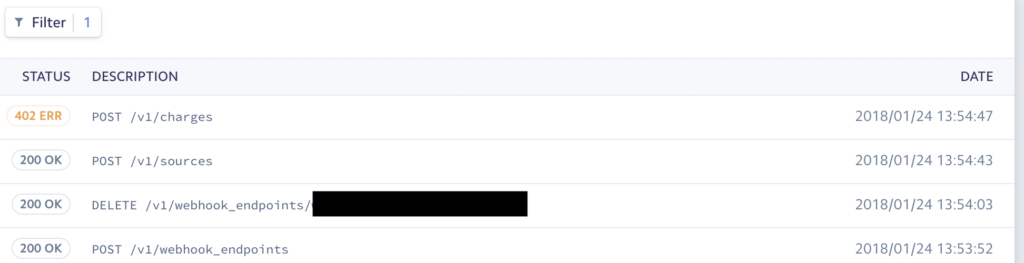
To quote Stripe:
Not all errors map cleanly onto HTTP response codes, however. When a request is valid but does not complete successfully (e.g., a card is declined), we return a 402 error code. To understand why a card is declined, refer to the list of codes in the documentation.
Several problems can cause this error, so you need to find out which one you have. For that you need the decline code.
Where to find the decline code (updated October 2026)
- Stripe Dashboard: open the failed payment under Payments. It shows the decline code and the reason Stripe gives for it. The Developers area also keeps a request log if you need the raw error.
- WooCommerce logs: go to WooCommerce, Status, Logs, and open the Stripe log for the day of the failure. Gateway logging has to be switched on in the Stripe payment settings, otherwise nothing is recorded.
- Browser: the error message is also visible in the page source or the browser console right after the failed payment, which is how we found it in 2018.
Match the code you find against Stripe’s decline code list. Typical causes are a wrong security code, a wrong card number, an expired card, insufficient funds, or a bank that wants extra authentication. For European customers, the bank asking for authentication is common, so test a few real cards on your live setup before you launch.
Source of the error (original 2018 walkthrough)
Once a payment is done, the page source shows what the issue is. To view it right after a failure, open the inspector in Chrome (command+option+i on a Mac). Sometimes it is just wrong card details. Again, check the decline code and message.
With error logging turned on you can also check the WooCommerce logs. For those using Trellis they live at /srv/www/domain.com/shared/uploads/wc-logs, for others at wp-content/uploads/wc-logs. In our case we found:
01-24-2018 @ 13:54:48 - ====Start Log====
Error: stdClass Object
(
 [error] => stdClass Object
 (
 [message] => Your card's security code is incorrect.
 [type] => card_error
 [param] => cvc
 [code] => incorrect_cvc
 [charge] => ch_111111111111111111111
 )

)
So the client did not enter the proper security code (CVC). In other cases it could be an incorrect card number or something else related to the payment.
Solution
As soon as you have the decline code from the page source, the Stripe Dashboard or your WooCommerce logs, you know what to correct. Here it was the CVC. Once the client entered the right security code, the payment went through. If the decline code points at your setup instead of the customer’s card, for example keys from the wrong mode, fix that and test again with a real low-value order. For a wider look at which payment methods suit European stores, see my guide to WooCommerce payment methods in Europe.
Need a WooCommerce Developer for Your Store?
We build and optimize WooCommerce stores for SMEs — from custom checkout flows and payment integrations to performance tuning and ongoing maintenance. Fixed-price quotes available.
- Custom checkout and cart optimization
- Payment gateway integration (Stripe, Mollie, PayPal)
- WooCommerce performance and speed optimization
- Ongoing store maintenance and support
Comments are closed for this post.