Visual Studio Code Custom Settings
The default Visual Studio Code theme is pretty darn good. But you sometimes want some small tweaks. Here some basic Visual Studio Code Changes that I like. You can use them or tweak them to your liking.
Hiding unnecessary elements
I hid several elements in the editor. Stuff I do not use. Inlike Jeffrey Ways I did not make it too spartan, but I did make it a little cleaner. Here is what I hid:
- minimaps,
- status bar
- open editors in the sidebar
Color Tweaks
I also change the active tab or window as the default theme is not clear to me. I made it blueish. Might change it later, but this is the choice I will stick to for now
User Settings
Here are the Visual Studio Code Custom Settings I use currently:
{

"editor.minimap.enabled": false,
"workbench.statusBar.visible": false,
"explorer.openEditors.visible": 0,
"workbench.colorCustomizations": {
"tab.activeBackground": "#3e9df5"
}
}
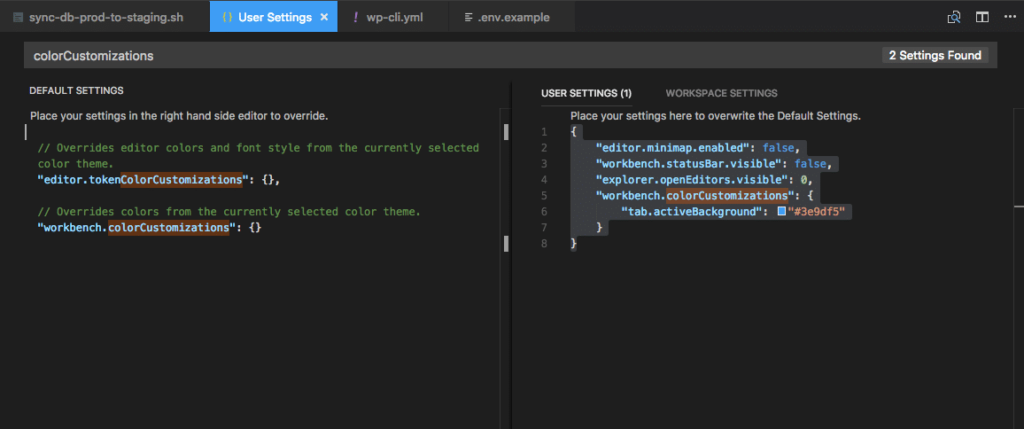
You can add them by going to settings with command comma and putting them in the user settings window:
Need a WordPress Developer?
We build, maintain, and troubleshoot WordPress sites for SMEs — custom theme development, plugin configuration, hosting setup, and ongoing maintenance. Fixed-price quotes available.
- Custom WordPress theme and plugin development
- WordPress hosting setup and server configuration
- Site migrations, updates, and troubleshooting
- Ongoing maintenance and support plans
Comments are closed for this post.