WordPress Speed Optimization: The Technical Guide, From Server to Browser
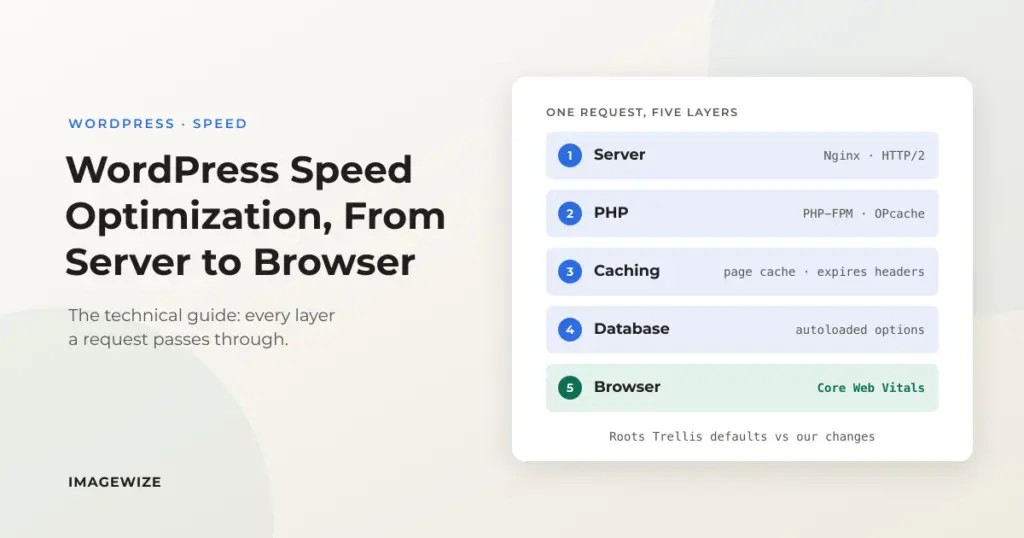
Most WordPress speed advice is a list of plugins. The fixes that last come from knowing where the time goes: the server, the caches, the database, or the browser. Each layer has its own tools, and fixing the wrong one is how sites end up with a 95 PageSpeed score and a slow checkout.
This guide goes through those layers in the order a request travels, with the configuration we run on our own production server and the results from client work. It is the technical reference. If you want the short, prioritized version for a small business site, read the WordPress speed optimization checklist instead.
Quick Summary: Measure first, then work down the stack. Server response time (TTFB) is decided by page cache, PHP workers and the database. Largest Contentful Paint is decided by one image and the CSS blocking it. Interaction delay (INP) is decided by JavaScript. On WooCommerce, the cache rules for cart and checkout matter more than any score.
In this guide
- How to read this guide: Roots defaults and our changes
- What works where: Trellis and shared hosting
- 1. Measure WordPress speed before you change anything
- 2. The server: PHP workers, memory, cache and headers
- 3. The caching layers
- 4. The database: autoloaded options
- 5. The browser: LCP, CLS and INP
- 6. WooCommerce: what you cannot cache
- Results from real sites
- 7. Keep it fast: monitoring
- WordPress speed optimization FAQ
How to read this guide: what Roots ships and what we changed
Our hosting runs on Trellis, the server provisioning and deployment tool from the Roots team, with Bedrock as the WordPress project structure. Roots deserves the credit for most of the good defaults: Nginx with a FastCGI page cache, PHP-FPM, OPcache, Redis support, HTTP/2, gzip, Let’s Encrypt and system cron in place of WP-Cron all come from Trellis. We did not invent them.
To keep the two apart, the server sections below show the Trellis default next to the value we run in production. We compared our configuration with the current roots/trellis repository on October 27, 2026. Where a value is unchanged, we say so. Not everyone runs their own server, so each section also says whether it applies to any hosting or needs server access, and the next section maps every technique to shared hosting.
What works where: Trellis, shared hosting and in between
The browser, database, image and measurement advice in this guide works on any host. The server layer is where hosting decides what you can change. Many of our clients are on shared hosting, and we run two Dutch hosts often enough to describe them honestly.
| Technique | Trellis or a VPS (root access) | Shared hosting with SSH | Shared hosting, limited access |
|---|---|---|---|
| Page cache | FastCGI cache in Nginx | A caching plugin such as WP Rocket, or the host’s own cache | A caching plugin, or a cache the host provides |
| Object cache (Redis) | Redis, configured in Trellis | Ask whether the host offers it. If not, the page cache covers anonymous traffic | Usually not available |
| PHP workers | Pool size set by you, one pool per site if needed | Fixed by the hosting plan | Fixed by the hosting plan |
| PHP memory | php_memory_limit plus the WordPress constants | Set in the host panel where exposed, plus WP_MEMORY_LIMIT in wp-config.php | WP_MEMORY_LIMIT in wp-config.php, or ask support to raise it |
| PHP version and OPcache | You choose the version and tune OPcache | Choose the version in the panel. OPcache belongs to the host | Choose the version if the panel allows it. OPcache belongs to the host |
| Expires headers and compression | Nginx include and gzip | Your caching plugin writes the rules, or the host’s server config | Your caching plugin, or ask support |
| Images | Command-line tools in the build, or locally before upload | Resize locally, then Imagify or similar | Resize locally, then a plugin |
| Autoloaded options and cleanup | WP-CLI | WP-CLI over SSH, or a plugin | A plugin or phpMyAdmin |
| Scheduled tasks | System cron replacing WP-Cron | Host cron where offered | Usually WP-Cron |
Antagonist.nl sits in the middle. It gives SSH access, but locked to allowlisted IP addresses, so connecting from a new network or a rotating VPN address fails until you add it in the control panel. WP-CLI works over SSH, although some PHP functions such as exec() are disabled on the account we manage, which means a database export needs mysqldump called directly. The PHP version is switchable in the panel, and CPU is throttled, which makes page caching matter even more. A plugin-based setup works well there: WP Rocket for caching and Imagify for images.
Webreus.nl is more limited. Expect to work through the panel and plugins, and to ask support for anything server-level. Even admin access can sit behind an IP allowlist, so plan for that before you need to log in during an emergency.
A plugin-based setup on decent shared hosting can reach good Core Web Vitals. What it cannot give you is control: you cannot size the PHP worker pool, tune OPcache, add Redis on demand or write your own cache rules. That control matters most for WooCommerce, where cart and checkout cannot use the page cache, and it is the main reason we run our own managed hosting on Trellis.
1. Measure WordPress speed before you change anything
Applies to: any hosting.
Field data beats lab data
PageSpeed Insights shows two things that get mixed up. The top section is field data: what real Chrome users experienced over the last 28 days, judged at the 75th percentile. The lower section is a lab test: one simulated mobile run. Google’s Core Web Vitals assessment uses the field data. Use the lab run to find causes, not to decide whether you passed.
| Metric | Good | Poor | What usually drives it |
|---|---|---|---|
| Largest Contentful Paint (LCP) | 2.5 s or less | over 4 s | TTFB, the hero image, render-blocking CSS |
| Interaction to Next Paint (INP) | 200 ms or less | over 500 ms | JavaScript on the main thread |
| Cumulative Layout Shift (CLS) | 0.1 or less | over 0.25 | Fonts, images without dimensions, late-injected banners |
| Time to First Byte (TTFB) | 0.8 s or less | over 1.8 s | Page cache, PHP workers, database |
INP replaced First Input Delay as a Core Web Vital in March 2024, so any guide still talking about FID is out of date.
Split TTFB from everything else
One curl command separates network time from server time, and a second shows whether the page cache answered.
For the developers: curl timing and the cache-header check
curl -s -o /dev/null -w 'dns %{time_namelookup}  connect %{time_connect}  tls %{time_appconnect}  ttfb %{time_starttransfer}  total %{time_total}\n' https://example.com/

curl -sI https://example.com/ | grep -i fastcgi-cache
Trellis adds the fastcgi-cache response header, which reads HIT, MISS or BYPASS. Run the request twice. If the second one is not a HIT on a page that should be cached, you have found your first problem. Also measure from where your visitors are: a TTFB taken from the other side of the world includes network round trips that no server tuning can remove.
Test the clean URL as well as a cache-busting one. A ?v=123 query string usually bypasses page caches, so it measures your origin, not the experience of a typical visitor. State which one you measured when you compare numbers.
2. The server: where most TTFB is decided
Needs server access (Trellis or a VPS). The previous section maps each technique to shared hosting.
In short: the fastest request is the one PHP never handles. Get the page cache right first, then size the PHP worker pool and memory limits, then isolate pools and rate-limit so one noisy site cannot starve the rest. The defaults below are Roots’ Trellis; the changes are ours.
A request that reaches PHP costs a worker, memory and database queries. The fastest request is the one PHP never sees. That is why the server layer usually gives the largest and cheapest gain, and why it is the first thing we look at on a client site.
Our production settings against the Trellis defaults
| Setting | Trellis default (Roots) | Our production value |
|---|---|---|
| FastCGI page cache | Available per site, off until enabled | Enabled on imagewize.com |
| Cache duration | 30 s, with background update | 30 s (unchanged) |
| Skip-cache URIs | Admin, REST, XML-RPC, wp-*.php, feeds, sitemaps | Adds /store, /cart, /my-account, /checkout, /addons, /contact |
| Skip-cache cookies | Comment author, WordPress login, post password | Adds woocommerce_cart_hash, woocommerce_items_in_cart, wp_woocommerce_session_ |
| Object cache | Redis or Memcached supported, off until enabled | Redis, database 0 |
| OPcache | On, 128 MB, 4,000 files | Same (unchanged) |
PHP-FPM max_children | 10 | 32, shared pool |
PHP-FPM start_servers | 1 | 15 |
| PHP-FPM spare servers (min / max) | 1 / 3 | 10 / 25 |
PHP-FPM max_requests | 500 | 500 (unchanged) |
PHP memory_limit (FPM) | 96M | 1024M |
WP_MEMORY_LIMIT (frontend) | 40M (WordPress) | 256M |
WP_MAX_MEMORY_LIMIT (admin, image processing) | 256M, or the PHP limit if higher (WordPress) | 512M |
PHP CLI memory_limit | Unlimited | Unlimited (unchanged) |
| Expires headers | Optional h5bp rules, off by default | One year on static files, from our own include |
| HTTP/2 | On | On |
| HTTP/3 | On in current Trellis | Not enabled (see below) |
| Compression | gzip, level 5 | gzip, level 5 (unchanged); no Brotli |
Page cache: the 30-second microcache and its exceptions
Trellis’ FastCGI cache keeps a rendered page for 30 seconds by default and serves a stale copy while it refreshes in the background. That sounds short, but it is enough to absorb a burst: a thousand requests for the same page in 30 seconds cost one PHP render, not a thousand. It also means a published change shows up almost immediately without a purge.
The part that needs judgment is what must never be cached. Out of the box, Trellis skips the admin, the REST API and logged-in users. On a WooCommerce site that is not enough. Cart, checkout, account pages and anyone holding a cart cookie have to bypass the cache, or one customer sees another’s basket. This is our per-site configuration in wordpress_sites.yml, shown below.
For the developers: the cache and Redis configuration
cache:
  enabled: true
  skip_cache_uri: /wp-admin/|/wp-json/|/xmlrpc.php|wp-.*.php|/feed/|index.php|sitemap(_index)?.xml|/store.*|/cart.*|/my-account.*|/checkout.*|/addons.*|/contact.*
  skip_cache_cookie: comment_author|wordpress_[a-f0-9]+|wp-postpass|wordpress_no_cache|wordpress_logged_in|woocommerce_cart_hash|woocommerce_items_in_cart|wp_woocommerce_session_
object_cache:
  enabled: true
  provider: redis
  database: 0
We exclude /contact too: the CAPTCHA image and its answer are generated on every page load, and a cached copy served a stale image to every visitor until the cache expired. Every exclusion is a trade: an uncached URL pays the full PHP cost on every visit, so keep the list as short as correctness allows.
PHP-FPM: size the worker pool to the memory you have
Each PHP-FPM worker handles one request at a time. When all workers are busy, Nginx still accepts connections, but they queue behind PHP, and visitors see a hang with no error. The Trellis default of 10 children is a sensible starting point for a small VM and too low for a busy WooCommerce site on 8 GB.
Our settings are the result of measurement, not a formula you can copy. A fresh worker idles at roughly 17 MB, but a real WordPress request with WooCommerce and Acorn measured around 114 MB, so we size for the worst case. The values are below.
For the developers: the PHP-FPM pool settings
php_memory_limit: 1024M          # WooCommerce plus Acorn memory spikes
php_fpm_pm: dynamic
php_fpm_pm_max_children: 32      # shared pool on the 8 GB server
php_fpm_pm_start_servers: 15
php_fpm_pm_min_spare_servers: 10
php_fpm_pm_max_spare_servers: 25
php_fpm_pm_max_requests: 500
Thirty-two workers at 114 MB is about 3.6 GB in the worst case, which leaves room for MariaDB, Redis and the OS on the same machine. Do that arithmetic for your own server before raising max_children: too many workers turns a queue into swapping, which is slower than the queue.
PHP and WordPress memory limits: three numbers that interact
PHP and WordPress each have a memory limit, and they do different jobs. PHP’s memory_limit is the ceiling for one request. WordPress then sets its own targets inside it: WP_MEMORY_LIMIT for ordinary frontend requests and WP_MAX_MEMORY_LIMIT for the admin and heavy jobs such as image processing. These are the values we run:
| Setting | Applies to | WordPress or Trellis default | Our production value |
|---|---|---|---|
PHP memory_limit (FPM) | Every web request, hard ceiling | 96M (Trellis) | 1024M |
WP_MEMORY_LIMIT | Frontend requests | 40M (WordPress) | 256M |
WP_MAX_MEMORY_LIMIT | Admin, image processing | 256M, or the PHP limit if higher (WordPress) | 512M |
PHP CLI memory_limit | WP-CLI, cron, deploys | Unlimited (Trellis) | Unlimited (unchanged) |
WordPress applies its limits at runtime with ini_set, and only ever upward: it raises the limit when PHP’s own value is lower, never lowers it. On our server PHP’s 1024M is already above both WordPress values, so the two constants do not change anything in practice. Every request, frontend or admin, can use up to 1024M. We keep the constants set because they document intent and act as a fallback if the PHP value ever changes.
A tighter setup would run a modest PHP ceiling, say 256M, and let WP_MAX_MEMORY_LIMIT raise it in the admin only. That keeps frontend workers small while the admin can still run an import. We have not tested that on this server, and it only works where ini_set is allowed, which many shared hosts block. There the PHP value simply wins.
WooCommerce is where these numbers start to matter. The Trellis default of 96M is fine for a brochure site and too tight for a store; WooCommerce’s server requirements recommend a WordPress memory limit of 256 MB or more. Stores run out in the admin first, during product imports and exports, large order lists and variable-product edits, and on cart and checkout, which cannot use the page cache. The symptom is a white screen or “Allowed memory size exhausted” in the PHP error log. Our own jump to 1024M came from real spikes: WooCommerce with Acorn, and wp acorn optimize during deploys.
Remember that memory_limit is a ceiling, not a reservation. A typical request uses far less: we measured about 114 MB, and that figure, not the limit, is what sizes the worker pool. But a high ceiling means a runaway script can consume a lot before PHP stops it, so keep an eye on real usage.
For the developers: the memory settings
// site/config/application.php (Bedrock)
Config::define('WP_MEMORY_LIMIT', '256M');      // frontend requests
Config::define('WP_MAX_MEMORY_LIMIT', '512M');  // admin, image processing

# trellis/group_vars/production/main.yml
php_memory_limit: 1024M
Workers and WooCommerce
Cart and checkout skip the page cache, so each request occupies a PHP worker for its full duration, including any time spent waiting on a payment gateway or a shipping API. A gateway call that takes three seconds holds a worker for three seconds. Size the pool for concurrent uncached requests (checkouts, admin sessions, AJAX calls), not for the number of visitors, because cached pages barely touch it. We also cap any single request at 300 seconds with request_terminate_timeout, so one stuck request cannot hold a worker forever.
Isolate pools so one site cannot starve the others
On October 3, 2026 a flood of requests from about 32,800 IP addresses hit one of our sites and filled the shared pool of 40 workers. Every site on the server timed out for 30 minutes, including this one. The fix was structural: the demo site now has its own pool of 8 workers, and the shared pool dropped from 40 to 32, so total capacity and worst-case memory stayed the same. Trellis supports one pool for all sites; the per-site pool template is our addition. The full incident, including the guesses we got wrong, is in the PHP-FPM pool flood write-up.
We also added Nginx rate limits on wp-login.php and the contact form, with a site-wide ceiling as well as a per-IP limit. Speed and capacity are the same problem: every request a bot makes to an uncacheable URL is a worker a real customer cannot use.
Expires headers, static assets and compression
Browser caching comes from expires headers, which tell a returning visitor’s browser not to ask for a file again. Trellis can enable the h5bp expires rules, but that switch is off by default, so we serve our own: a small Nginx include, assets-expiry.conf.j2, gives images, fonts, CSS, JavaScript and SVGs a one-year expiry with Cache-Control: public, no-transform. We checked on October 27, 2026: the theme’s hashed stylesheet and an uploaded JPG both come back with an expires date one year ahead.
A year is safe only for files whose name changes when their content does. Our theme build adds a content hash to every filename, so a changed file gets a new URL. Uploads are not hashed, so if you replace an image under the same filename, returning visitors can keep the old copy for up to a year. Upload the new version under a new name. Without hashed filenames anywhere, use a much shorter expiry.
For the developers: the Nginx expires include (images and fonts)
location ~* \.(jpg|jpeg|png|gif|ico|webp|avif|eot|ttf|woff|woff2|otf)$ {
    try_files $uri =404;
    expires 1y;
    add_header Cache-Control "public, no-transform";
    access_log off;
    etag on;
}
Compression is gzip at level 5, which Trellis chose as the balance between CPU and size. We do not run Brotli. It would shave some more bytes off text assets, but Trellis does not ship it and we have not added it.
OPcache: check the file limit on a modern stack
OPcache keeps compiled PHP in memory so files are not re-parsed on every request. The Trellis defaults (128 MB and 4,000 files; PHP’s own default is 10,000) suit a plain WordPress install. opcache.max_accelerated_files is the maximum number of scripts OPcache can hold, so a Bedrock project with Acorn, WooCommerce and a Composer tree can have more PHP files than that and cannot be cached in full. Check it from inside PHP-FPM, not the CLI, with opcache_get_status(): if num_cached_scripts sits close to max_accelerated_files, raise the limit.
HTTP/3: on our list to test, not a result yet
Current Trellis releases ship HTTP/3 (QUIC) support. Our Trellis copy predates that code, so we run HTTP/2 only. That is a version gap, not a decision against it.
What HTTP/3 does and does not do matters here. It runs over UDP and avoids the way a single lost packet stalls every request on a TCP connection, and it makes connection setup cheaper. The benefit shows up for visitors on slow or unstable mobile networks. It does nothing for server processing time, so it will not fix a slow TTFB or a missing page cache. On a fast connection the difference is small.
Our plan is to update to a current Trellis release, open UDP port 443, enable HTTP/3 on a test environment first, and compare field data and throttled-mobile WebPageTest runs before and after. If it helps, we will add the measured numbers to this section.
3. The caching layers, and what each one cannot do
Applies to: any hosting. A plugin or the host provides the page cache on shared hosting.
In short: the page cache serves anonymous traffic, Redis speeds up the requests the page cache must skip, and OPcache helps every PHP request. Run one page cache, not two.
| Layer | What it stores | Helps most with | Cannot help with |
|---|---|---|---|
| Browser cache | Static files on the visitor’s device | Repeat visits | First visits |
| Page cache (FastCGI) | Whole rendered HTML pages | Anonymous traffic, TTFB | Carts, checkout, logged-in users |
| Object cache (Redis) | Query results and options | Uncached pages, admin, WooCommerce | Slow front-end assets |
| OPcache | Compiled PHP | Every PHP request | Slow database queries |
| CDN | Static files near the visitor | Visitors far from the server | Server processing time |
Two points come up repeatedly in audits. First, page cache and object cache solve different problems. A brochure site behind a good page cache gets little from Redis. A store gets a lot, because carts and checkout are the pages the page cache must skip, and those are exactly the requests Redis speeds up. We confirm the object cache is live with wp_using_ext_object_cache(), and we do not claim a hit-rate figure we have not measured.
Second, stacking two page caches is a common mistake. A caching plugin on top of server-level FastCGI caching means two layers to purge, two places for stale content, and double the debugging. Pick one page cache. If you run WP Rocket or LiteSpeed Cache, let it own that job and use the server for compression, static files and PHP tuning.
4. The database: autoloaded options
Applies to: any hosting. WP-CLI makes it faster where SSH is available.
In short: sort autoloaded options by size, not by count. Two forgotten options totaling about 366 KB were enough to break a deployment on our own site.
WordPress loads every option marked autoload on every single request, before anything else happens. Old plugins that never clean up after themselves quietly grow that set. When it gets large, every request pays for it, cached or not, and so does every WP-CLI command and deployment.
This is where we found a real problem on our own site. A deployment failed because wp acorn optimize ran out of memory, even with 2 GB allowed. The cause was two options left behind by a WPML installer from 2014, roughly 228 KB and 138 KB of autoloaded data. Removing them cut autoloaded data from 608 KB to 251 KB, a 58.7% reduction, and the deploy worked again. An earlier cleanup in October 2025 had already reduced the option count from 1,273 to 831 but missed these two because they were few and large, not many and small. When we measured again on October 27, 2026, the total was 244 KB across 902 options.
Sorting by size instead of count finds the culprits fastest. The query is below.
For the developers: the LCP image markup
wp db query "SELECT option_name, LENGTH(option_value) AS bytes FROM wp_options WHERE autoload IN ('yes','on','auto-on','auto') ORDER BY bytes DESC LIMIT 10;" --path=web/wpAnything over about 100 KB deserves a look, and a total over roughly 1 MB is a clear signal. Before deleting, identify which plugin owns the option, take a database backup, and set autoload to no first if you are unsure. That is reversible, deleting is not.
Cron and CLI memory
By default WordPress runs scheduled tasks when a visitor loads a page, which adds latency to a random request. Trellis turns that off (DISABLE_WP_CRON is set on our production site) and runs wp cron event run --due-now from system cron every 15 minutes instead. Credit to Roots for making that the default.
The catch is memory. We observed WP-CLI cron runs using 2.5 to 3.6 GB in November 2025, far above a web request, which is one reason we run an 8 GB server. When you size RAM, count the CLI processes, not only the PHP-FPM workers.
5. The browser: LCP, CLS and INP
Applies to: any hosting.
In short: find the LCP element and remove what delays it, stop render-blocking CSS from holding back the first paint, reserve space to prevent layout shift, and cut JavaScript to improve INP.
Once the server answers quickly, what is left is how fast the browser can paint. This is the layer PageSpeed Insights reports on, and the one with the most repeatable fixes. The detailed code for each is in the 95 mobile PageSpeed walkthrough, where we took imagewize.com from 73 to 99 on desktop and to 95 on mobile.
LCP: find the element, then remove the delay
PageSpeed breaks LCP into four parts: time to first byte, resource load delay, resource load duration and element render delay. Look at the breakdown before touching anything. On our own homepage the resource load delay was 2,360 ms, while the image download itself took 270 ms. The cause was a one-word mistake: the hero image carried loading="lazy", so the browser held it back until layout finished.
For the developers: the autoload query
$html = wp_get_attachment_image(
    $image_id,
    'hero-desktop',
    false,
    array(
        'loading'       => 'eager',
        'fetchpriority' => 'high',
        'sizes'         => '(min-width: 1024px) 576px, 50vw',
    )
);
Never lazy-load the LCP image, and never lazy-load anything above the fold. Serve it at the size it displays: ours was 1500 by 871 pixels (70 KiB) shown at 576 by 334, and a correctly sized WebP brought it to 17 KiB on standard screens and 39 KiB on retina.
Render-blocking CSS
WordPress, WooCommerce and every block plugin add their own stylesheets to the head, and the browser waits for all of them before painting. Stylesheets for content below the fold can load without blocking, using the media="print" swap. We saved roughly 300 to 400 ms of blocking time this way on our homepage.
One trap deserves repeating: never apply the swap to a stylesheet that has its own media query. WooCommerce’s small-screen stylesheet only applies below a width breakpoint, and the swap turns it into all, so the mobile layout applies on desktop and the shop grid collapses to two columns. Exclude any stylesheet whose media is not all.
CLS: fonts and reserved space
Our homepage measured a layout shift of 0.602 against a target of 0.1, caused by the body font loading after first paint and reflowing the page. Preloading the two font files that matter, with crossorigin set, removed it. For icon fonts, font-display: swap does the same job. Also set width and height on every image, and reserve space for anything injected after load, such as cookie banners and embeds.
INP: it is a JavaScript problem
INP measures how long the page takes to respond after a tap or click. A slow INP almost always means long tasks on the main thread: too much JavaScript parsed and run. When we analyzed a sample of more than 600 Dutch WooCommerce shops, unused JavaScript was the top Lighthouse finding on 95% of the sites we examined in detail, averaging about 599 KB of wasted code per page, and the worst case was 1.3 MB. Our analysis of more than 600 Dutch WooCommerce shops has the breakdown.
The repeatable fixes: load plugin scripts only on the pages that use them, defer what cannot be removed, replace heavy sliders and page builders with native blocks, and take third-party tags (chat, analytics, pixels) out of the critical path. Remove first, defer second, because deferred JavaScript still costs CPU.
Images: the biggest payload on most sites
Start before the upload. A phone photo is often 4,000 pixels wide, while a content column shows about 800. Resize images on your own computer first: Preview on macOS (Tools, then Adjust Size), Paint or Photos on Windows, Photoshop, or free tools such as GIMP and Squoosh. It costs nothing, needs no plugin, and keeps the oversized original out of your media library for good.
For the format, WebP is a safe default. Roughly 96% of browsers support it (Wikipedia, 2024 figure). The exception is social sharing. Facebook’s image documentation does not say WebP is supported for og:image, so we do not rely on it. For a post’s featured image, which is what gets shared, upload a JPG or PNG at 1200 by 630 pixels and test the URL in Facebook’s Sharing Debugger. Use WebP for the images inside the page.
The tooling depends on your hosting. On shared hosting we use Imagify for compression and WebP conversion and WP Rocket for caching. Both come from the same company (WP Media), they work together, and neither needs server access. On our Trellis servers we skip both: page and static-file caching live in Nginx, and we convert and compress with command-line tools, either locally before upload or during the build. The commands are below.
For the developers: the image conversion commands
cwebp -q 80 photo.jpg -o photo.webp
jpegoptim --max=82 --strip-all *.jpg
pngquant --quality=65-85 --ext .png --force *.png
After adding custom image sizes run wp media regenerate --only-missing so existing images get the new sizes. On a client site with 2,686 images, a bulk WebP conversion reduced the total image payload from 1.6 GB to 837 MB, a 48% cut. For plugin settings and more detail, see optimizing and converting images.
6. WooCommerce: what you cannot cache
Applies to: any hosting. On shared hosting, put the cache exclusions in your caching plugin.
In short: cache product pages, never cache the cart, checkout or account pages, and use Redis for the pages the cache has to skip.
A store has two kinds of pages. Product and category pages for anonymous visitors can be cached like any other page. Cart, checkout and account pages are personal and must never be, which is why a store lives or dies on its cache exclusions. DIY attempts usually go wrong in one of two directions: caching too much (customers see each other’s carts) or caching nothing (every product page pays the full PHP cost).
- Bypass the page cache on the cart, checkout and account paths, and for anyone with a WooCommerce cart or session cookie, as in the configuration above.
- On shared hosting, enter the same paths and cookies in your caching plugin’s never-cache lists instead of Nginx.
- Use Redis, because the uncacheable pages are the ones that depend on database speed.
- Load WooCommerce scripts and styles only where they are needed, not on every blog post.
- Test checkout with the cache warm, logged out, with a real cart. A green PageSpeed score on the homepage says nothing about it.
If you run a store and are not sure what your cache is doing to the checkout, our WooCommerce checkup looks at exactly this.
Results from real sites
| Site | Starting point | What changed | Outcome |
|---|---|---|---|
| imagewize.com (our own) | Desktop 73, LCP load delay 2,360 ms, CLS 0.602 | Async CSS, responsive hero, eager LCP image, font preload, autoload cleanup | Desktop 99, mobile 95, autoload down 58.7% |
| Jochen Schweizer Corporate (client) | Mobile 84, desktop 91, mobile LCP 3.7 s, CLS 0.310 | 2,686 images to WebP (1.6 GB to 837 MB), YouTube preconnect, icon font swap | Staging: 15.7% faster backend, 97.5% cache hit ratio. Target after deployment: LCP 2.2 to 2.7 s |
For Jochen Schweizer, the backend speed and cache hit ratio are staging results and the LCP figure is a projected target, as stated in the Jochen Schweizer speed case study, not final production numbers. We would rather label them than round them up.
7. Keep it fast: monitoring and regressions
Speed decays. A new plugin, a marketing tag, a redesigned hero or a plugin update that adds a stylesheet can undo months of work. Three habits catch it early:
- Check field data in PageSpeed Insights or the Search Console Core Web Vitals report monthly, and after every significant release.
- Run an uptime monitor with a response-time threshold, so a pool exhaustion or a cache that stopped working pages you before customers notice.
- Review the largest autoloaded options and the slow-query log quarterly, and audit plugins at the same time.
WordPress speed optimization FAQ
- What is a good TTFB for a WordPress site? Google treats 0.8 seconds or less as good and anything over 1.8 seconds as poor. On a page served from a FastCGI cache the server part is a few milliseconds, so most of what you see is network distance.
- Do I need Redis for WordPress? Not for a brochure site with a working page cache. It matters for WooCommerce, membership and any site with many logged-in users, because those requests skip the page cache and depend on database speed.
- Can a caching plugin replace server-level caching? It can replace it, but you should not run both. A plugin cache and a FastCGI cache are two page caches, which means two layers to purge and twice the chance of serving stale content. Choose one.
- Is HTTP/3 worth enabling? It mainly helps visitors on slow or unstable mobile connections and does nothing for server processing time. Measure field data before and after rather than assuming a gain.
- What is the single biggest speed win on a WordPress site? It depends on the bottleneck, which is why you measure first. A missing page cache is usually the biggest server-side problem, and an oversized or lazy-loaded hero image is the biggest front-end one.
Where to go next
- The short version for small business sites: WordPress speed optimization checklist.
- The server we run and why: What is Trellis WordPress hosting and our managed WordPress hosting.
- Having us do it: WordPress speed optimization service.
Want Results Like These for Your Site?
We provide WordPress speed optimization for SMEs and white-label performance services for agencies. Our typical results: 90+ PageSpeed scores on both mobile and desktop, with measurable improvements to Core Web Vitals and conversion rates.
- Core Web Vitals optimization (LCP, CLS, INP)
- WooCommerce performance tuning
- Server-side optimization (Nginx, Trellis)
- Image optimization and lazy loading
Comments are closed for this post.