WooCommerce Place Order Button Not Working? How to Find Out Why
A customer fills in your checkout on a phone, taps Place order, and nothing happens. Or a spinner turns and never stops. Or a red notice says something went wrong. When your WooCommerce Place Order button is not working, customers rarely email you about it. They leave, and you find out from a drop in orders, if you notice at all.
Those three symptoms look different on screen and have different causes, yet most advice treats them as one problem and says to switch themes and disable plugins. That test is worth running, and I cover it below, but it is slow and it does not tell you which kind of failure you have. To show how they differ, I broke the checkout on a test store three ways (and tried a fourth that broke nothing), watched each one in a phone-sized browser, and counted the orders afterward.
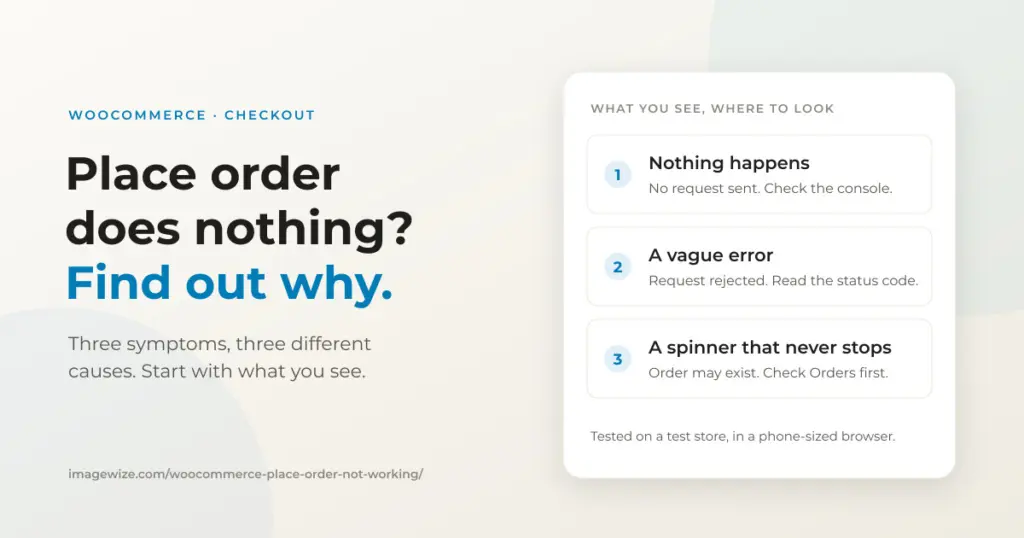
Quick summary: What you see on screen tells you where to look. Nothing happens means no request was sent, so a script on the page stopped it. A vague error means the request was sent and rejected, so read its status code. A spinner that never stops means the request is stuck, and the order may already exist, so check your Orders list before anything else. All three tests ran on the classic checkout of a test store, not on a client site.
Check first: does the order already exist?
Before you debug anything, open WooCommerce > Orders. A checkout that looks dead can still have created the order, and that changes what you tell the customer.
In my slow-server test, the order showed up in the list with the status pending while the shopper was still looking at a spinner. It moved to processing only when the server finished. A customer who gave up at the spinner had, in fact, an order. If you tell them to try again, you may end up with two (more on that below).
If you run the store and you are not a developer
You can get a long way without any developer tools. Five things to do yourself, today:
- Look for the order. Search WooCommerce > Orders for the customer’s name or email. If the order is there, it went through, even if they saw an error or a spinner.
- Ask the customer what they saw. Nothing at all, a red error message, or a spinner that kept turning? Each one has a different cause, and knowing which saves your developer time.
- Place a test order yourself, on your own phone and on a computer. Note whether it fails on both or only on one.
- Do not ask the customer to try again yet. Check Orders first. In my test, a retry during a hang created a second order for the same purchase.
- Write down what changed recently: a plugin or WooCommerce update, a new payment method, a theme or hosting change. Problems that start right after an update are usually caused by it.
Send those answers to whoever looks after your store. The rest of this article is the diagnosis they will run, and your answers tell them where to start.
See what the browser sees (two minutes)
This part is for you or your developer. If browser tools are not your thing, send the answers from the list above to your developer and skip to what a retry did.
A request is the message your checkout sends to your server when someone taps Place order. You can watch it happen in any desktop browser:
- Put an item in the cart and open your checkout page.
- Open the browser’s developer tools (F12 in Chrome) and switch on the phone-sized view with the device toolbar.
- Go to the Network tab, tick Preserve log, and filter by Fetch/XHR.
- Fill in the form and click Place order, then watch what appears.
One of three things happens, and each points to a different place to look.
| What you see | What the Network tab shows | What it usually means | Look at first |
|---|---|---|---|
| Nothing happens | No request appears | A script on the page stopped the submit | The browser console; scripts hooked to the checkout form |
| A vague error notice | A request with a 4xx or 5xx status | The server, or something in front of it, rejected the request | The status code; firewall, security and cache rules; the PHP error log |
| A spinner that never stops | A request that stays pending for a long time | The server is slow or stuck after saving the order | Your Orders list; slow plugins and outside calls; server logs |
Which checkout do you have?
WooCommerce has two kinds of checkout, and the advice you find online depends on which one you run. The classic checkout is built from a shortcode and sends its request to ?wc-ajax=checkout; that is what I saw in my test. The block checkout, the default for new installations since WooCommerce 8.3 in November 2023, uses WooCommerce’s Store API and, according to its documentation, posts to /wp-json/wc/store/v1/checkout.
To tell which you have, open your Checkout page in the editor. A block called Checkout means block checkout. A Shortcode block containing [woocommerce_checkout] means classic. I only tested the classic checkout, so the results below are for that one. The split between the three symptoms is the same idea on both, but check the request that your own checkout sends.
Place Order does nothing: no request is sent
The button looks active, you tap it, and there is no spinner, no message and no request. The console may even be empty. This is the hardest one to spot from the customer’s side, because nothing tells them anything went wrong.
I reproduced it with a small script that stops the checkout form from submitting, the same thing a validation, address-lookup or tracking plugin does when it hooks the checkout event and returns false. Result: no request, no console error, no order, and a button that stayed clickable.
To look for the cause, open the console for red errors, then run the conflict test on a staging copy (see the FAQ). Also check scripts that your theme and plugins add to the checkout page.
One thing that did not break checkout in my test: I put the defer attribute on jQuery, as some JavaScript-optimization settings do, and the order still went through. So do not assume a defer or minify setting is guilty without testing it.
For the developers: the script I used and how to find a culprit
The reproduction was one inline script on the checkout page. Any handler on the form that returns false for the checkout_place_order event stops the submit silently.
jQuery( function ( $ ) {
	$( 'form.checkout' ).on( 'checkout_place_order', function () {
		return false;
	} );
} );
To find a handler like this in a real store, search your theme and plugins for the event name:
grep -rn "checkout_place_order" wp-content/plugins wp-content/themesA vague error: the request was rejected
Here the customer sees a red notice. In my test it read: There was an error processing your order. Please check for any charges in your payment method and review your order history before placing the order again. That message sounds alarming, and it appears whatever went wrong. My blocked request returned a plain 403 Forbidden page, and WooCommerce still showed the same generic notice.
The real information is in the Network tab. In my test, the checkout request came back with 403 in 73 milliseconds, and no order was created. The status code is your first clue:
- 403: a rule refused the request. Look at your firewall, security plugin and CDN settings.
- 404: the address is not being routed to WooCommerce. Look at rewrite rules and cache or security rules.
- 500 or 502: PHP crashed. Look at WooCommerce > Status > Logs and the PHP error log.
Because no order is created in this case, the customer can safely try again once you fix it. But the notice tells them to check for charges first, and plenty of shoppers will not bother to try again.
Why checkout fails only on mobile
If checkout works on your desktop and fails on a phone, something is treating phones differently. In my test I simulated a rule that blocks checkout requests from mobile browsers, and the phone-sized browser failed with the 403 above. I did not run a desktop comparison, but a rule keyed on mobile browsers would not touch desktop by design. Three places to look:
- Security or firewall rules that key on the browser type.
- Cache or CDN rules, which can serve phones a different version of the page.
- Theme scripts that only load on mobile, such as a menu script. In one WordPress.org support thread the poster traced a JavaScript error to what looked like the theme’s mobile menu script, though the cause was never confirmed. I did not reproduce that one.
A phone-sized window in desktop developer tools catches most of this, but it is not a real phone, so test on an actual device too.
Checkout hangs on Place Order: an endless spinner
The customer taps Place order, a spinner appears, and it keeps turning. In my test I made the server pause for 45 seconds right after it saved the order. The request was sent and, for the 15 seconds I watched, never got an answer. The spinner stayed up, and the order was already in the database as pending.
Real causes include a slow call to a payment gateway or another service, a plugin that does heavy work when an order is created (sending emails, updating a CRM, creating a shipping label), and a server that has run out of PHP workers, which is a hosting limit. WooCommerce’s own documentation also notes that on some servers, sending order emails during checkout can slow the response enough to cause timeouts, and describes deferring them.
There is also a server-side catch. The default Nginx access log does not record how long a request took, so a hanging checkout does not stand out in it. You have to add the request time to the log format.
For the developers: log the request time in Nginx
Standard Nginx variables, no plugin needed. Add a log format that includes how long the request took, then point a log at it. Adjust the paths to your setup.
log_format timed '$remote_addr [$time_local] "$request" '
                 '$status $request_time $upstream_response_time';

access_log /var/log/nginx/access-timed.log timed;
After that, requests to wc-ajax=checkout with a large $request_time show you which ones hung and for how long.
Other causes I did not test
Other people have reported causes I did not reproduce. I list them so you can check them, not because I can vouch for them:
- Cloudflare Rocket Loader reordering scripts on the checkout page, which FunnelKit’s checkout guide lists as a recurring cause of a dead Place Order button.
- A page-builder checkout widget (Elementor or Divi) running alongside the block or shortcode, so two scripts bind to the same form. The same guide describes this.
- A stricter default after an update. One write-up describes a WooCommerce update that exposed a stricter checkout-field default, which blocked checkout until a required phone field was made optional.
Do not click again: what a retry did
When a checkout hangs, the natural reaction is to reload and try again. In my test I did exactly that: I waited eight seconds on the spinner, reloaded the page (the cart was still there), filled in the form again and clicked Place order. The second attempt went through, and I ended up with two orders for one purchase.
That is what happened when the first request was still running while the second started. It does not mean WooCommerce always duplicates orders. It does mean that, after a hang, you should check the Orders list before telling a customer to try again, and be ready to cancel or refund a duplicate.
When to stop guessing
Run the checks in this order: does the order exist, which of the three symptoms is it, and what does the Network tab show. That usually narrows it to one area within minutes. The conflict test comes after that, on a staging copy, not on a live store that is taking orders.
If the checkout is losing sales and you would rather not do this yourself, I fix checkout problems on WooCommerce stores at a fixed price once the cause is clear. The free WooCommerce checkup is a good first look at the rest of your store. Both are my own services, so weigh that. The checkup cannot see inside a failing checkout, which is what a manual review is for, so use it to spot store-wide problems, not to diagnose this one.
If the cause turns out to be server capacity, that is a managed hosting question. If you inherited the store from a developer who is no longer around, start with a site takeover. For a wider health check, see how to audit your WooCommerce store.
Frequently Asked Questions
- Why does the Place Order button do nothing on my WooCommerce checkout? Usually because JavaScript on the page stopped the submit before any request was sent. In my test, a script that returned false on the checkout form gave exactly this: no spinner, no message, no request and no order. Open the browser console and the Network tab, click the button, and check whether a request appears. If none does, look at scripts added by your theme and plugins.
- Why does WooCommerce checkout spin forever after I click Place Order? The request reached your server but never finished. In my test the server paused after saving the order, and the spinner kept turning while the order already existed with the status pending. Common causes are slow calls to a payment gateway or another service, a plugin that does slow work when an order is created, or a server that has run out of PHP workers.
- Why does checkout fail only on mobile? Something treats phones differently. In my test, a rule that blocked checkout requests from mobile browsers made checkout fail in a phone-sized browser. A security rule, a cache rule or a theme script that only loads on mobile can do the same. Compare the checkout request on desktop and in a phone-sized window, and look at its status code.
- How do I find out which plugin is breaking my checkout? First find out which kind of failure you have, because that narrows the search. Then run the standard conflict test on a staging copy: switch to a default theme, deactivate everything except WooCommerce and your payment gateway, and reactivate plugins one at a time until the problem returns. Do not run this test on a live store that is taking orders.
- Can a caching plugin break WooCommerce checkout? Yes, if cart and checkout pages or their background requests are cached or rewritten. Exclude the cart, checkout and account pages from page caching, and check that no cache or security rule blocks the checkout request. I did not test caching plugins in my experiment, so check your own setup instead of assuming.
- Will a customer be charged twice if they click Place Order again? It can create a second order. In my test, a shopper who reloaded the checkout during a hang and clicked again ended up with two orders for one purchase, because the first request was still running. Before telling a customer to try again, check WooCommerce > Orders to see whether their order already exists.
Need a WooCommerce Developer for Your Store?
We build and optimize WooCommerce stores for SMEs — from custom checkout flows and payment integrations to performance tuning and ongoing maintenance. Fixed-price quotes available.
- Custom checkout and cart optimization
- Payment gateway integration (Stripe, Mollie, PayPal)
- WooCommerce performance and speed optimization
- Ongoing store maintenance and support