What Is Full Site Editing in WordPress? A Complete 2026 Guide for Site Owners
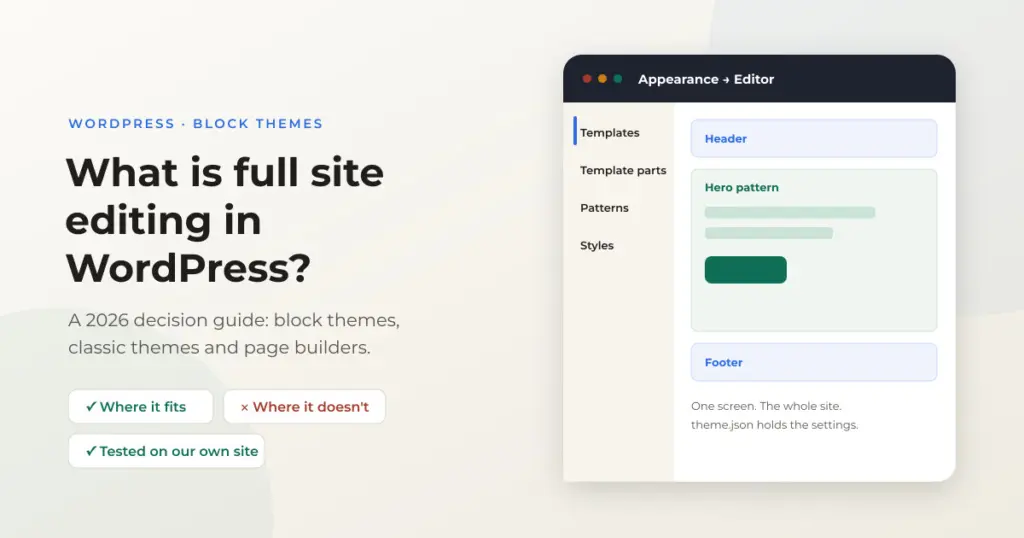
On our own Dutch pricing page, a full-width band rendered at the narrow content width instead of the full screen. In a classic theme we would have guessed through CSS. In a block theme we dumped the stored block structure and measured it: the band was nested one group deep, so its margin was 0px instead of -24px. That is full site editing (FSE) in one example: the whole site, not just page content, is made of blocks you can inspect.
FSE has been in WordPress core since version 5.9 (January 2022), and it is now how new sites are built. “New default” does not automatically mean “right for your site”, though. We are a one-person WordPress shop that ships block themes to the WordPress.org directory and runs its own site on a block-based theme, so this is a decision guide, not a vendor-neutral overview: what FSE is, how it compares with classic themes and page builders, where it struggles, and how to start without breaking your current site.
Quick summary: Full site editing means the whole site — not just posts — is built from blocks in the Site Editor. It ships with WordPress core, costs nothing extra, and cannot lock you into a plugin. It is the best default for new SME sites and shops in 2026. It is the wrong choice for complex web applications, legacy plugin stacks that assume classic themes, and anyone whose team is already fluent in a page builder. If you are choosing a platform today: block theme for new builds, classic theme only if your existing site depends on it, and treat page builders as a maintenance cost, not an asset.
In this guide
- What full site editing actually is
- Your first 10 minutes in the Site Editor (patterns, template parts, your own patterns)
- How we got here: classic themes, the block editor, FSE
- Block theme vs classic theme
- FSE vs page builders
- What FSE means for your business
- What we build with it
- How we build pages and posts with AI and wp-ops
- The challenges we actually hit
- When not to use FSE
- Getting started with FSE
- Frequently asked questions
What full site editing actually is
Full site editing is the feature that lets you design the entire site — not just page content — with blocks, inside an editor called the Site Editor (Appearance → Editor). A site built this way runs on a block theme: a theme whose templates, template parts (header, footer), and styles are themselves made of blocks and a small configuration file called theme.json, instead of PHP template files.
The pieces you will meet in the Site Editor:
- Templates — the layouts for pages, posts, archives, search results, the 404, and so on. Each is a set of blocks you can edit per-template.
- Template parts — reusable pieces like the header and footer, edited once and used everywhere.
- Patterns — pre-built sections (hero, pricing table, FAQ) you insert and restyle. Themes ship their own; the WordPress directory ships thousands more.
- Global styles — site-wide colors, typography and spacing, set once in the Styles panel and applied everywhere, including to blocks added later.
- Style variations — complete alternate looks (different palette and fonts) bundled with a theme, switchable in one click.
- theme.json — the theme’s settings file: layout widths, color palette, allowed blocks, spacing scale. It is plain JSON, version-controlled with the theme.
The practical difference for a site owner: with a classic theme, “change the footer” can mean editing PHP, the Customizer, widgets and menus in three different screens. With FSE it is one screen, and what you see while editing is the actual page. For a developer, the difference is that a block theme is a folder of HTML templates plus JSON — deployable with Git and WP-CLI like code, which is exactly how we ship ours.
Your first 10 minutes in the Site Editor
The Site Editor is built into WordPress. There is nothing to install, no license to buy, and no second editor to learn: it is the same block editor you use for posts, extended to the whole site. That is the biggest practical difference from a page builder such as Elementor, which is a separate plugin with its own interface. You need a block theme active to see it. On a classic theme the menu item reads Customize instead of Editor. The screenshots below are from our demo site, which runs Elayne, our full-site-editing theme. This is the order we use when we hand a site to a client:
- Open Appearance → Editor. You land on a preview of your site with a navigation panel on the left.
- Start with Styles. Set colors, fonts and spacing here before touching any page; every block, including ones you add later, inherits them.
- Open a template part. Change the header or footer once; the change applies to every page.
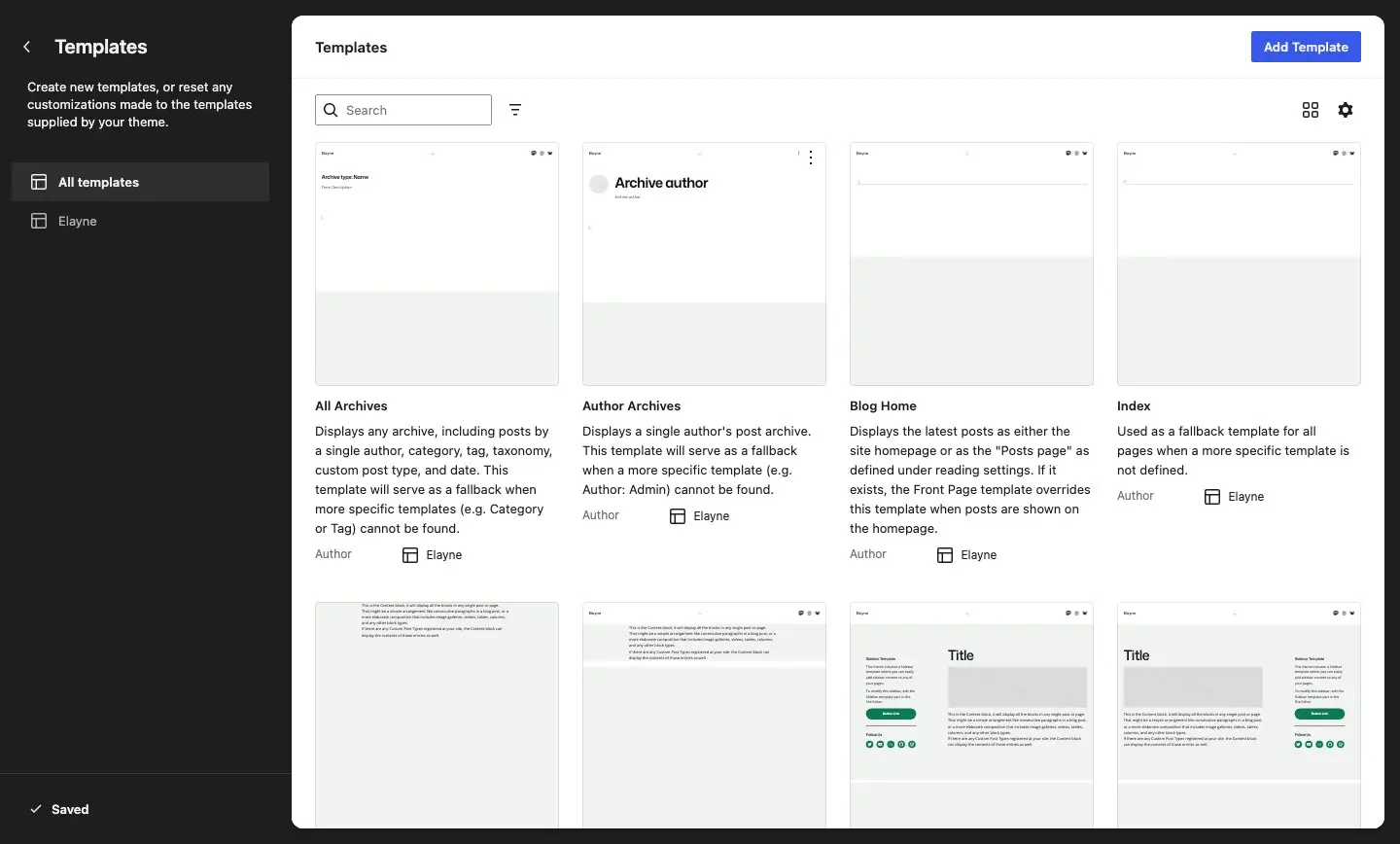
- Open the Templates list. Find the one for single posts and see which blocks make up a blog post layout. This is where “change how every blog post looks” lives.
- Browse Patterns. Insert a ready-made section into a test page instead of building from an empty canvas.
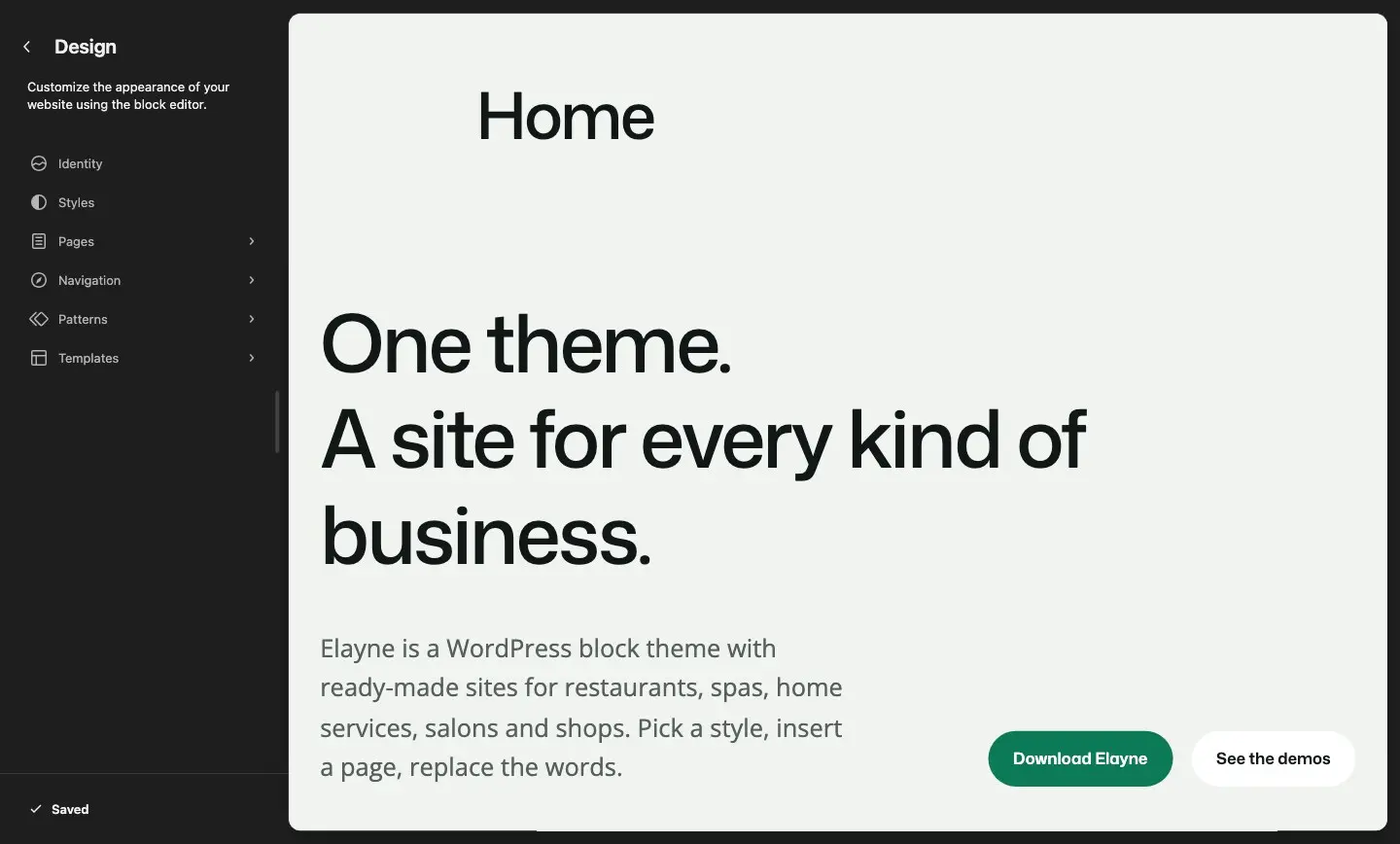
Where to find template parts and templates
Template parts (header, footer) and templates (single post, archive, 404) have their own lists. Open one and you edit it exactly like a page: click a block, change it, save. Every page that uses it updates.
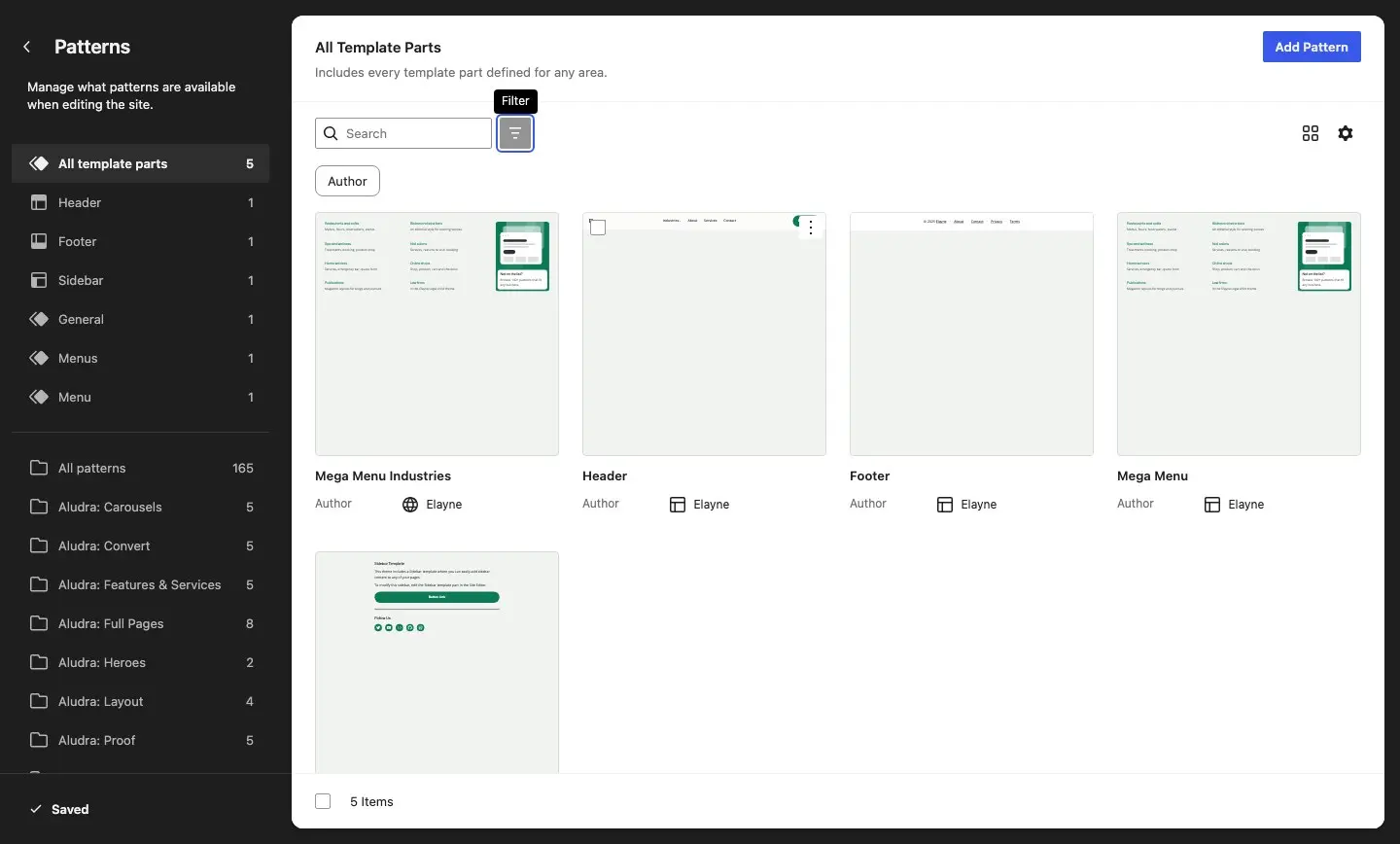
Where to find patterns, and how to build your own
Patterns are ready-made sections: a hero, a pricing table, a testimonial row. You can reach them in two places. In the Site Editor, the Patterns screen lists every pattern your theme and plugins provide. In a page or post, the block inserter (the blue plus button) has a Patterns tab, so editors can drop a section in without opening the Site Editor at all.
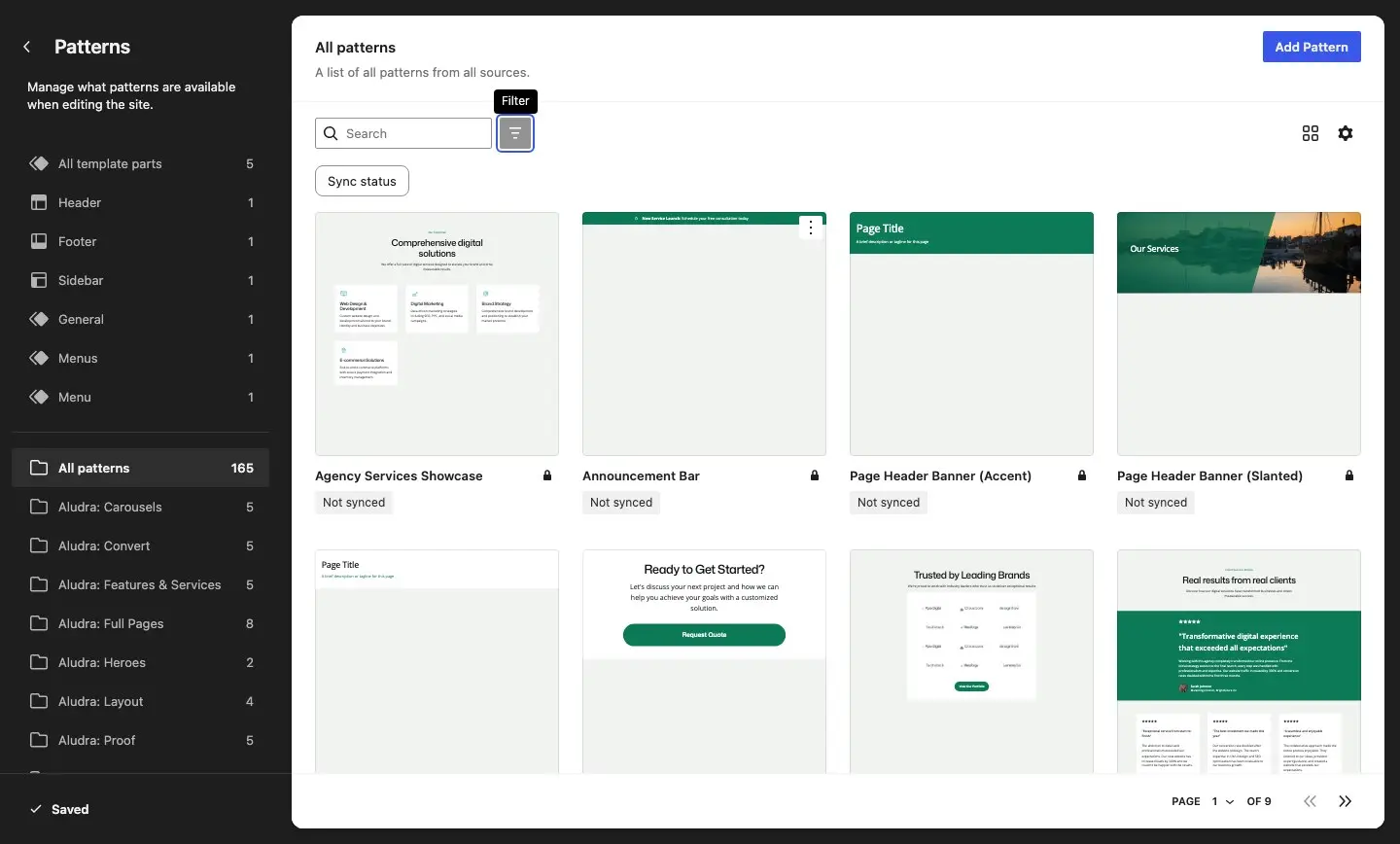
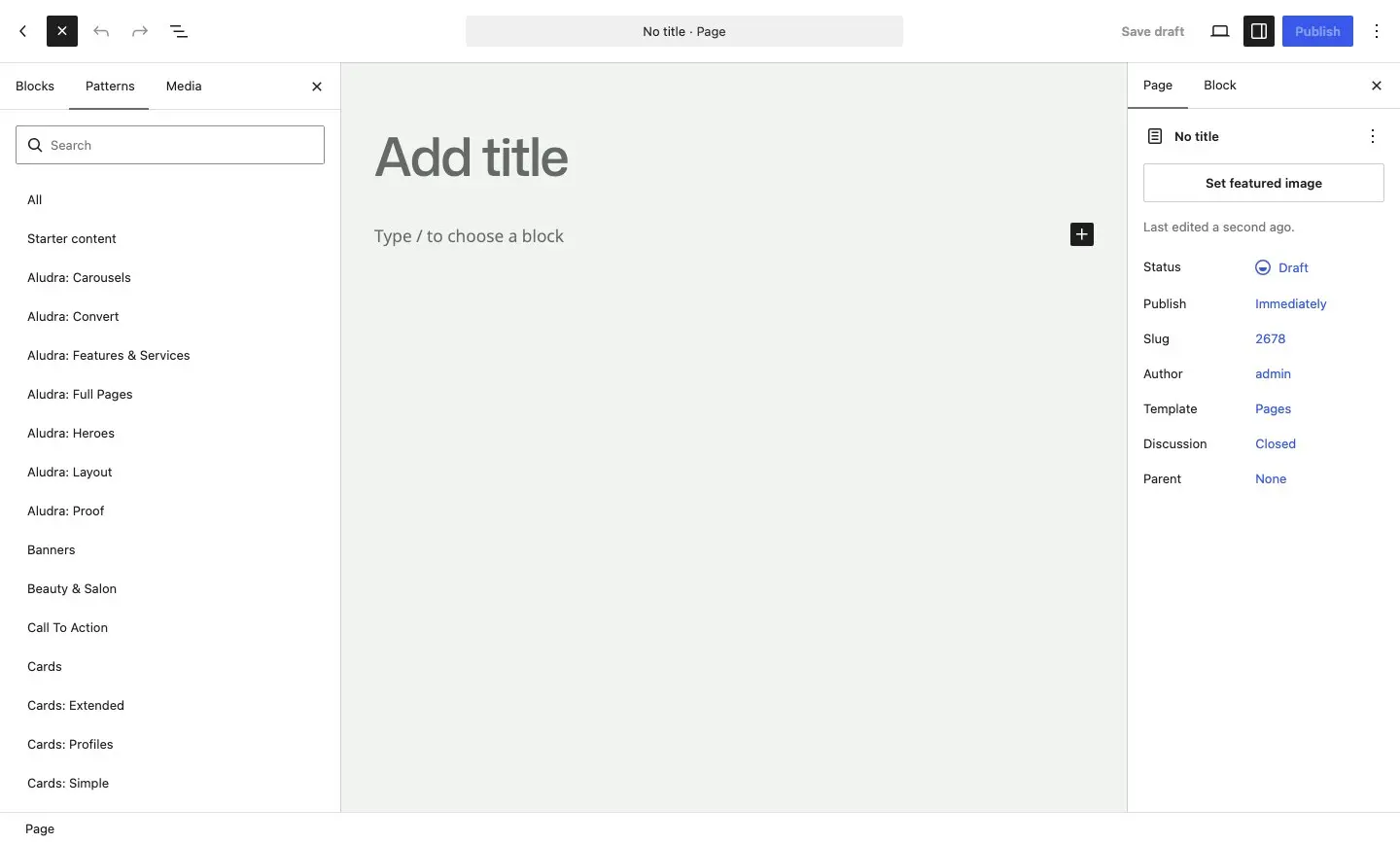
You are not limited to what the theme ships. There are two ways to get your own patterns:
- Build one yourself in the editor. Design a section on any page, select it, open the options menu and choose Create pattern. Give it a name and a category, and decide whether it is synced (edit once, change everywhere) or not synced (each use is an independent copy). It now appears in the inserter next to the theme’s patterns. No code, no plugin.
- Have a developer build one. A developer can ship patterns inside the theme as block-based markup or as PHP files. In a block theme, each file in the
patterns/folder carries a small header (title, slug, categories) followed by the block markup, and PHP lets it pull in translated text or theme image URLs. Elayne’s patterns are built this way. This is the route for sections that must stay identical across many sites or need dynamic content, and the patterns travel with the theme in Git.
Template edits are saved in the database, so a theme update does not overwrite them, and you can reset any template to the theme’s version from the same screen. Make the first edits on a staging copy, not on the live site.
How we got here: classic themes, the block editor, FSE
- Classic themes (pre-2018 and still most existing sites): layouts live in PHP files (
header.php,single.php), styling in CSS, options in the Customizer. Powerful, but every change is code or a custom field. - Block editor / Gutenberg (WordPress 5.0, 2018): page and post content became blocks. The surrounding theme — header, footer, sidebar — stayed PHP.
- Full site editing (WordPress 5.9, January 2022): the theme itself became blocks. The Site Editor arrived for template parts and templates.
- 2026 state: the recent default themes WordPress ships are block themes, WooCommerce offers block-based cart and checkout, and the theme directory has a “Full Site Editing” filter for finding block themes. FSE is no longer experimental; the remaining question is fit, not maturity.
Block theme vs classic theme: the honest comparison
Both are fully supported in 2026 — “block theme” does not mean “classic themes are deprecated.” The difference is who edits what, and where the layout lives:
| Criterion | Block theme (FSE) | Classic theme |
|---|---|---|
| Where the layout lives | HTML block templates + theme.json, version-controllable | PHP template files + functions.php |
| Editing the header/footer | Site Editor, one screen, live preview | Customizer, widgets, menus — often three screens |
| Code needed for layout changes | None for basics | PHP/CSS for most changes |
| Frontend weight | Core blocks load their own CSS only when used; no extra framework | Theme-dependent; some load scripts on every page |
| Theme updates | Your template edits are stored in the database; theme updates don’t overwrite them | Edits in a child theme survive; edits in the parent are overwritten |
| Client self-service | Patterns + locked templates: clients edit content, not layout | Depends on custom Customizer fields |
| WooCommerce | Block-based cart and checkout, editable in the Site Editor | Theme must declare WooCommerce support; templates vary |
| Plugin compatibility | Good and improving; a few plugins still assume classic themes | Widest compatibility, by definition |
| Developer workflow | Git, Composer, WP-CLI, CI validation of block markup | Familiar PHP tooling; Sage/Roots for larger builds |
| Best fit | New sites, SME brochure + shop sites, anything maintained for years | Complex applications, legacy plugin stacks, existing sites that work |
Our own setup shows both sides. imagewize.com runs on Nynaeve, a Sage-based theme: Blade templates in PHP, with block patterns and custom blocks on top. Its Site Editor shows only Styles and Patterns; open Templates and WordPress answers “The theme you are currently using does not support this screen” (checked on our local copy, November 23, 2026). We chose that for agency-style control. Our full-site-editing themes, where templates and template parts are editable in the Site Editor, are Elayne and Winespring. When a layout band rendered narrower than designed on one of our Dutch pages in November, we could still measure the exact cause because the content is stored as blocks (more on that below) instead of guessing through a Customizer
FSE vs page builders: Elementor, Oxygen, Divi and friends
A page builder is a plugin that overlays its own editor and saves your design in its own data format. Elementor, Divi, Oxygen, Breakdance and Bricks all work this way. FSE is not a plugin; it is WordPress core, so there is nothing extra to buy, install or keep updated. The short version: with FSE your content stays in plain blocks you can take to any host or developer, while with a builder, leaving usually means rebuilding the pages. The full criterion-by-criterion comparison, with cost and performance, is in Block Theme vs Page Builder for SMEs. Here are three things from our own client work that comparison does not cover:
- Elementor vs a locked-down server. We published a troubleshooting guide after ModSecurity on Nginx started returning 403 errors to Elementor editor saves. The builder’s AJAX requests trip strict firewall rules, and on a hardened server that means writing exceptions by hand. Read our WAF and Elementor post for the rule specifics. We have not tested whether the Site Editor ever trips the same rules.
- Oxygen’s cached CSS and signed data. A client site we maintain runs Oxygen Classic 4.9.7. A new element’s colors do not apply until its per-page CSS cache is regenerated, and the copy is stored twice, so editing only one copy leaves the old text on screen with no error. When Oxygen sent an “update immediately” security notice for 6.1.2, we did not update: 6.x cannot read Classic’s signed builder data, so updating would have broken every page. When the client needed a temporary moving notice on three pages, we shipped it as a small mu-plugin instead of pasting it into three builder pages: one edit to remove it later, no builder data touched. We plan to propose moving the site to a block theme in early 2027.
- Builders show up as a demand signal. In a scan of about 35 Upwork jobs in mid-October 2026, about 4 asked for an Elementor to Gutenberg migration or explicitly refused third-party builders. That is a small sample. We also skipped a Divi job in August 2026 because our track record is Elementor, not Divi, not because of a view on builders.
Note: page builders are not evil. For a one-off campaign landing page, or a client who genuinely wants to drag elements around themselves every week, a builder can be the pragmatic choice — especially if the site lives for three months and is then deleted. FSE wins when the website is an asset you will maintain, hand over, or grow for years.
What FSE means for your business (SME view)
- Less code on the page, in principle. Core blocks have no builder framework loading on every page. We have not benchmarked this on identical content, so measure your own site before and after. Speed matters for rankings and conversion; our speed optimization guide covers what actually moves the needle.
- Lower maintenance bills, usually. No per-site builder license, one less large plugin to update, and any WordPress developer can take over — you are not renting a specific plugin’s ecosystem.
- Safer client editing. You can lock templates and patterns so the people updating content cannot accidentally delete your header or restyle your pricing table. With most builders, “the client edited the page” is how layouts break.
- Clean handovers. A block theme plus Git means the next developer gets the real files, not a database full of shortcodes. We run our clients on managed Trellis hosting for the same reason — see managed WordPress hosting and who really owns your website.
- Shops work well. WooCommerce’s cart, checkout and account pages are block templates now. We test them the way we test anything that takes money — see how we test a checkout before launch.
What we build with it (agency/builder view)
For agencies and productized services, FSE changed the economics of theme work. We maintain a block library (Aludra — 34 blocks, free on the WordPress.org plugin directory since October 9, 2026, currently v2.42.2) and ship ready-made block themes: Elayne (on WP.org since October 9, 2026; the directory showed about 50 active installs and 920 downloads when we checked on October 24), Winespring for WooCommerce stores (live on WP.org since November 20, 2026), plus Aviendha, Ixian and Koffie for client builds. When a theme grows too large for every industry, new verticals ship as child themes — that is how Elayne Legal came about.
Because block themes are files, the whole professional workflow works: Composer + Bedrock + Trellis deploys, WP-CLI, and automated block-markup validation (we run Sentinel and pt-cli to catch block markup that the editor would flag as invalid). Custom blocks like our mega menu block register with a block.json and render from a Blade view. The Trellis/Bedrock side of the stack is covered in our FSE developer workflow post.
One limit of our own products: Aludra needs WordPress 7.0 and Winespring needs 6.9, so neither suits a host stuck on an older core, and Elayne is young (about 50 active installs when we checked on October 24). Check the last-updated date and install count of any block theme, ours included.
How we build pages and posts with AI and wp-ops
Because a block theme’s content is plain block markup, an AI assistant can draft it and a script can push it, which is not true of a builder’s proprietary data. This is our actual workflow, and this guide went through it:
- The draft is a file. The AI assistant writes the page or post as Gutenberg HTML in a Git repository, working from a short rule list (core blocks only, no fixed font sizes, spacers instead of separators, a proof line for every post).
- A human checks the claims. A claims check compares every number and story against our own logs and sources. The first draft of this guide contained four wrong statements about our own client work, and the check caught them before anything was published. The AI speeds up drafting; it does not replace checking.
- wp-ops imports it, local first. wp-ops, our own command-line tool, pushes the draft into WordPress through WP-CLI. It goes to the local copy of the site first, we review it in the browser, and only then to production, which asks for a typed confirmation. It runs from the terminal or as an MCP server, so the AI assistant can call it directly.
- Validation and verification. A validator such as Sentinel checks that the block markup is valid, and a verify step compares what is stored with what renders on the live page. This is what catches the failures in the next section.
The limits are real. wp-ops needs SSH access and a terminal, so it suits developers and agencies, not site owners editing their own pages; for them, the Site Editor above is the right tool. It is also our own tool, so treat our enthusiasm accordingly. And scripted publishing has its own traps, covered below: a custom block that saved empty, and an update that silently ate backslashes.
For the developers: pushing a draft with wp-ops
Import a page draft to the local site first, review it, then to production:
wp-ops import-page-draft content/pages/my-page.html 123 imagewize.com local
echo yes | wp-ops import-page-draft content/pages/my-page.html 456 imagewize.com production
Page IDs differ between local and production, so look them up by slug. Content written through WP-CLI must go through wp_slash(), which wp-ops handles from version 5.17.1.
The challenges we actually hit — and their fixes
FSE is mature, but it has sharp edges that tutorials skip. These are the ones we hit on our own sites, with the fixes:
- Full-width sections that are not full width. An
alignfullblock only breaks out to the viewport when it is a direct child of the post-content wrapper. Wrapped in acore/group, it stays at the group’s width — we measuredmargin-left:-24pxon direct children versus0pxone group deep on a Dutch pricing page in November. Fix: check the stored block structure with WP-CLI before touching CSS. - Mobile overflow from wide blocks. Per-group “content width” settings and wide-aligned core blocks nested in groups touch the screen edge on phones, because the constrained layout’s side padding does not apply to them. Fix: use theme defaults (
contentSize52rem,wideSize64rem in our theme.json) and check every new page at 390px. - Blocks that save empty when pushed by script. A one-line self-closing custom block (our CTA) pushed via WP-CLI saved as an empty block with no visible output. Fix: hand-build the full serialized markup, and always run the publish dry-run plus a stored-vs-rendered verification.
- Silent content corruption on update.
wp_update_post()withoutwp_slash()ate every backslash in a post’s code samples (post 13729). Fix: alwayswp_slash()content written via WP-CLI. - Theme updates breaking sites. WordPress 7.1.4 unpacks flat GitHub release zips into a randomly named folder, which broke images on a client theme in November; the fix was wrapping the release zip in a top-level folder, ported to all our theme repos. WP.org themes do not have this problem because WordPress.org builds the package.
- Plugin gaps. A few plugins still assume classic themes (widget areas, Customizer settings). WooCommerce itself is fine — we run a nine-check automated checkout test on every store we launch (9/9 passing on our latest client run in November) — but always test plugins on a staging copy of a block theme before committing.
For the developers: checking where a full-width band actually renders
If a band renders capped at your content width, dump the stored block structure first — nesting decides whether alignfull means anything:
wp eval 'foreach ( parse_blocks( get_post( $id )->post_content ) as $b ) { echo $b["blockName"] . PHP_EOL; }'And the theme.json layout to know: "layout": { "contentSize": "52rem", "wideSize": "64rem" }. Per-group width overrides on individual blocks are the classic way an FSE page ends up narrower than the design.
When NOT to use FSE
- Complex web applications. Membership portals, learning platforms, booking engines with deep custom logic — these are application development, and a classic PHP theme, a headless frontend, or a framework like Laravel (we use Sage/Roots for agency builds; see our Sage 10→11 migration write-up) gives you real code where you need it.
- Legacy plugin stacks. If your site depends on plugins that only work with classic themes (older sliders, some form plugins, custom Customizer-heavy themes), migrating to FSE is a project, not a toggle. Audit first, migrate on staging, 301 everything.
- Your team is fluent in a builder. If your marketing team lives in Elementor daily and ships pages weekly, the switching cost can exceed the savings — at least until the next redesign. Revisit at redesign time; that is when the math flips.
- Short-lived campaign pages. A landing page that lives for a quarter is a fine page-builder job. FSE’s advantages compound over years of maintenance, not weeks.
Getting started with FSE (without breaking your current site)
- 1. Try it on a staging copy, never on production first. Duplicate your site (we keep a local Trellis clone of every client site for exactly this) and switch themes there.
- 2. Pick a block theme from the WordPress.org directory — filter by “Full Site Editing” — or start from ours on our themes page. Check the last-updated date and active installs, not just the screenshot.
- 3. Explore the Site Editor before changing anything: Templates, Template Parts, Patterns, Styles. Set global styles (colors, fonts) first — every later edit inherits them.
- 4. Build pages from patterns, not from scratch, and lock the patterns your content editors should not touch.
- 5. Test at 390px width. Wide and full-width blocks are where FSE layouts overflow on phones.
- 6. Deploy like code: Git + Composer + WP-CLI, with block-markup validation in CI. Our way of working is built exactly around this.
- 7. Migrate content carefully: keep URLs identical (or 301 them), re-check SEO meta, and request re-indexing in Search Console after launch.
- 8. If you’d rather not do any of this yourself, that is a fixed-price conversation — see our FSE block theme development service (custom FSE themes from €2,500).
Frequently Asked Questions
- Is full site editing the same as the block editor (Gutenberg)? No. The block editor (WordPress 5.0, 2018) edits page and post content. Full site editing (WordPress 5.9, 2022) extends the same block approach to the whole site — templates, header, footer — via the Site Editor, using a block theme.
- Do I need to know code to use FSE? Not for everyday editing — changing a header or building a page from patterns is point-and-click. You need a developer for custom blocks, migrations, and anything involving theme files, but the result is maintainable by any WordPress developer, not just the one who built it.
- Is FSE good for WooCommerce? Yes — cart, checkout and account pages are block templates in current WooCommerce, and purpose-built store block themes exist (we ship one, Winespring). Just test payment and shipping flows on staging before launch; we run a nine-check automated checkout test on every store we build.
- Can I convert my existing classic-theme site to FSE? Yes, but treat it as a migration project: staging copy first, a block theme that matches your design, URL-for-URL redirects, SEO meta re-check, and a phone-width pass. It is very doable for brochure and shop sites; complex plugin-dependent sites need an audit first.
- Is FSE faster than a page builder, and what happens if I leave one? We expect it to be lighter, because core blocks have no builder framework loading on every page, but we have not run a controlled A/B benchmark, so treat that as architecture, not a lab result. Leaving is the clearer difference: content in a block theme stays readable as core blocks on any theme, while leaving a page builder usually strands the layout in shortcodes or proprietary data and requires a rebuild.
Need Help with a Block Theme or FSE Build?
We build and debug WordPress block themes — full-site editing templates, pattern libraries, Site Editor workflows, and the WP-CLI plumbing that keeps them deployable. Fixed-price quotes and ongoing support available.
- FSE block theme builds and migrations from classic themes
- Block pattern libraries and Site Editor template work
- Pattern validation, debugging, and WP-CLI deployment workflows
- WooCommerce on block themes — single product, shop, and archive templates